
- Local LLMs
- Local AI
- LLMs
- Ollama
- Guides
Best LLM for 8GB RAM, CPU Only: 9 Open Source Picks (2026)
The best open source LLMs for 8GB RAM and no GPU: 9 models that fit, real download sizes, speed estimates and Ollama setup for Windows, Mac and Linux.
By PickZeal
Updated 24 min read
Key takeaways
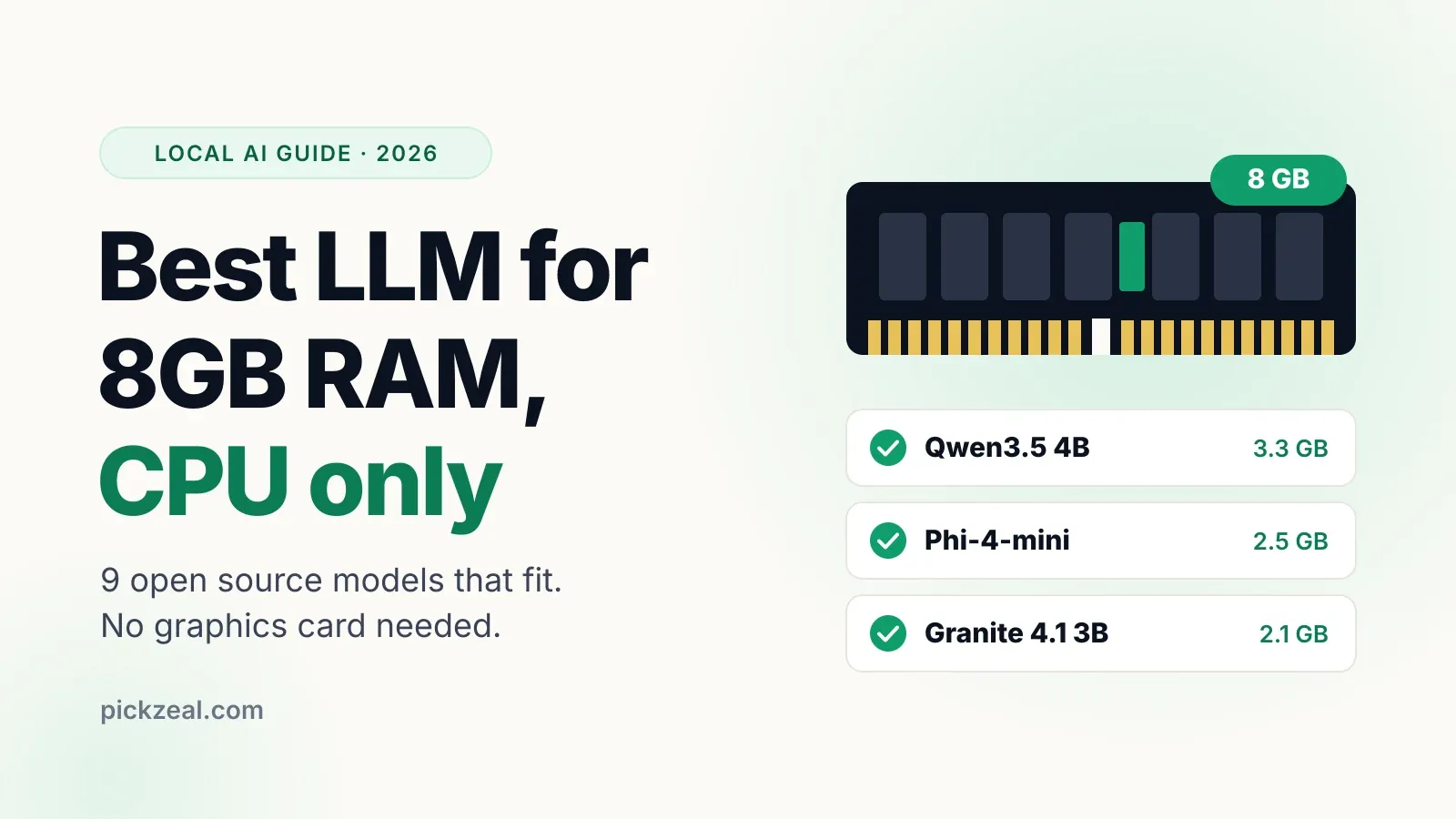
- The best LLM for 8GB RAM on a CPU-only computer is Qwen3.5 4B. Run it with: ollama run qwen3.5:4b (3.3 GB download).
- Stay at 3B to 4B parameters in Q4_K_M format. On Windows, about 3 GB of your 8 GB is free for the model; on a light Linux desktop, about 5 GB.
- Do not type plain 'ollama run qwen3.5'. That downloads the 9B model (6.6 GB), which will not fit next to Windows and a browser.
- Expect roughly 5 to 13 tokens per second from a 4B model on a laptop CPU, which is about reading speed. Two RAM sticks are almost twice as fast as one.
- For code, use Qwen2.5-Coder 3B for autocomplete; for math and logic, Phi-4-mini; for summaries and documents, Granite 4.1 3B.
The best LLM for 8GB RAM on a CPU-only computer is Qwen3.5 4B. It is open source (Apache 2.0), it is a 3.3 GB download in Ollama, and it leaves enough memory for Windows and a browser. If your laptop is older or you want faster replies, drop to Qwen3.5 2B. For math and logic, pick Phi-4-mini; for code autocomplete, Qwen2.5-Coder 3B.
This guide covers nine open source models that actually fit in 8 GB of RAM with no graphics card. For each one you get the download size, the license, what it is good at and the exact command to run it. It also explains the parts most “best local LLM” lists skip: how much of your 8 GB a model can really use, why a laptop with one RAM stick runs at half speed, and which default Ollama tags quietly download a model that is too big.
All sizes were checked on the Ollama library and Hugging Face on November 19, 2026. Speeds are labeled estimates, worked out from memory bandwidth, not lab benchmarks. The method is explained at the end. New to running models on your own computer? Our guide on how to run an LLM locally brings together the model, app and hardware choices in one place.
The short answer: best LLM for 8GB RAM, CPU only
If you only read one section, read this one. These are the picks, by what you need:
| What you need | Best model | Ollama command | Download |
|---|---|---|---|
| Best all-round answers | Qwen3.5 4B | ollama run qwen3.5:4b |
3.3 GB |
| Fastest that is still good | Qwen3.5 2B | ollama run qwen3.5:2b-q4_K_M |
1.9 GB |
| Math and logic | Phi-4-mini (3.8B) | ollama run phi4-mini |
2.5 GB |
| Code autocomplete | Qwen2.5-Coder 3B | ollama run qwen2.5-coder:3b |
1.9 GB |
| Summaries and documents | Granite 4.1 3B | ollama run granite4.1:3b |
2.1 GB |
| Many languages | Ministral 3 3B | ollama run ministral-3:3b |
3.0 GB |
The general rule: on 8 GB of RAM with no GPU, choose a model with 3 to 4 billion parameters in Q4_K_M format, keep the context at 4K to 8K tokens, and close what you do not need while it runs.
Can I run a local LLM without a GPU?
Yes, you can run a local LLM without a GPU. Ollama, LM Studio and llama.cpp all run models on the CPU alone, and they do it automatically when no supported graphics card is found. You do not need CUDA, a gaming laptop or any special drivers.
What changes without a GPU is speed, not whether it works. A graphics card has very fast memory, so it can read a model’s weights quickly. A CPU reads the same weights from your normal system RAM, which is slower. For a small model this still gives replies at about reading speed, which is fine for chat, writing help and quick questions.
What does not work well on a CPU:
- Big models. A 7B to 9B model at Q4 is 4.5 to 6.6 GB. On 8 GB of RAM it either does not fit or pushes your system into swap, and then it crawls.
- Very long prompts. Before the first word of a reply appears, the model has to read your whole prompt. A CPU does this part slowly, so pasting a long document can mean waiting half a minute or more before anything happens.
- Agents and long tool-calling loops. Small models drift after a few rounds of structured tool calls. Use them for one-shot tasks.
If you have a laptop with Intel Iris Xe, AMD Radeon integrated graphics or a similar built-in GPU, it shares the same 8 GB of system RAM. It can help a little in some tools, but it does not add memory. Plan as if you were CPU only.
How much of your 8GB RAM a local LLM can actually use
On Windows 11, a local LLM can use about 3 GB of an 8 GB machine. On Linux with a light desktop, about 5 GB. The rest belongs to the operating system, your browser and the memory reserved for built-in graphics.
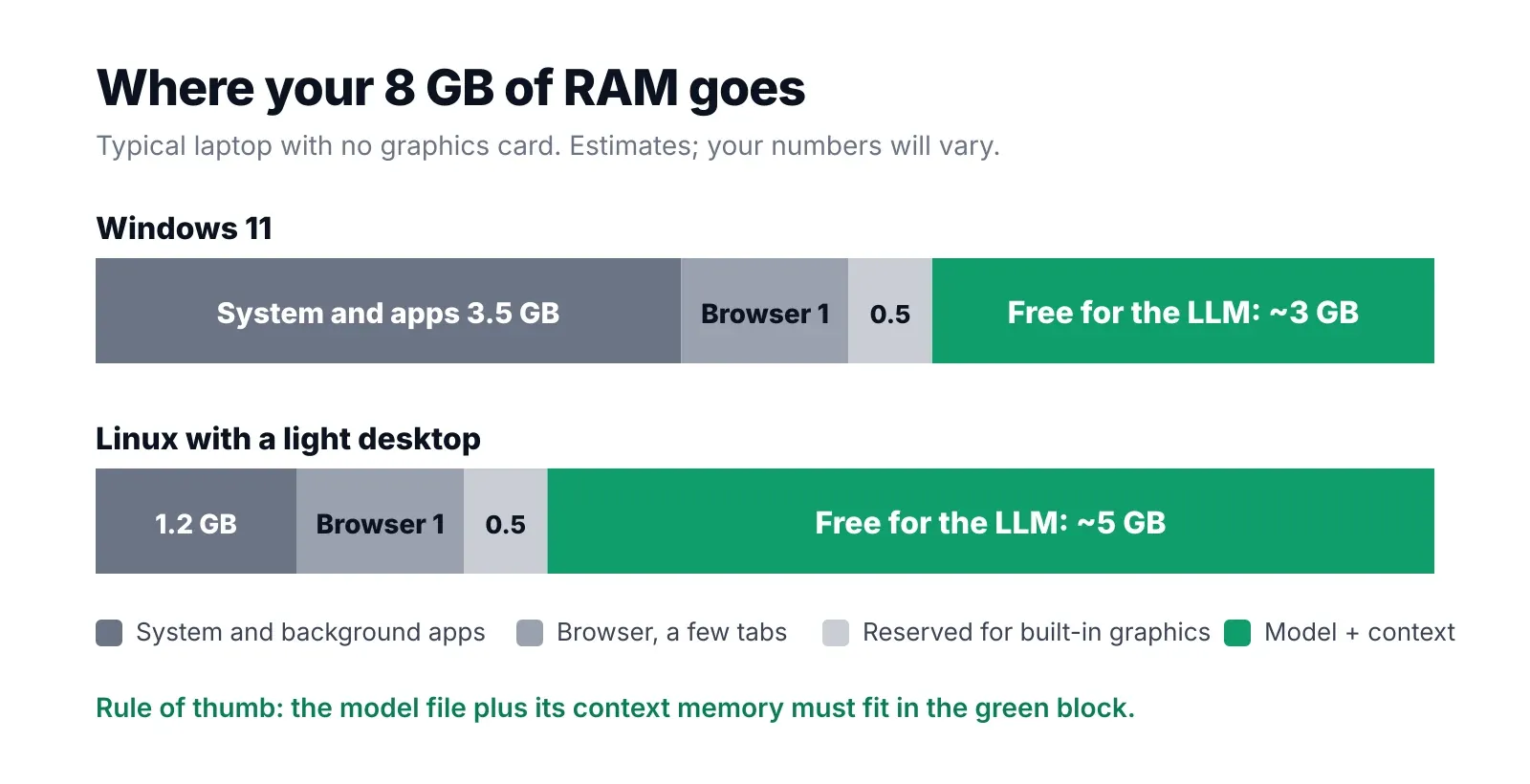
These are typical numbers, not fixed ones:
| Item | Windows 11 | Linux, light desktop |
|---|---|---|
| System and background apps | about 3.5 GB | about 1.2 GB |
| Browser with a few tabs | about 1 GB | about 1 GB |
| Reserved for built-in graphics | about 0.5 GB | about 0.5 GB |
| Free for the model and its context | about 3 GB | about 5 GB |
Your own numbers are easy to check. On Windows, open Task Manager, go to Performance, then Memory, and look at “Available”. On Linux, run free -h and look at the “available” column. Check it with your usual apps open, because that is the situation the model will run in.
The model needs room for two things:
- The model file itself. This is the download size you see in Ollama or LM Studio.
- The context memory (KV cache). This grows with the length of the conversation. It is covered in its own section below.
If the two together are bigger than your free RAM, the system starts swapping to disk. Swapping makes generation drop from several tokens per second to well under one. That is the most common reason people decide that “local AI does not work on 8 GB”, when the real problem was a model that was one size too big.
The 9 best open source LLMs for 8GB RAM, CPU only
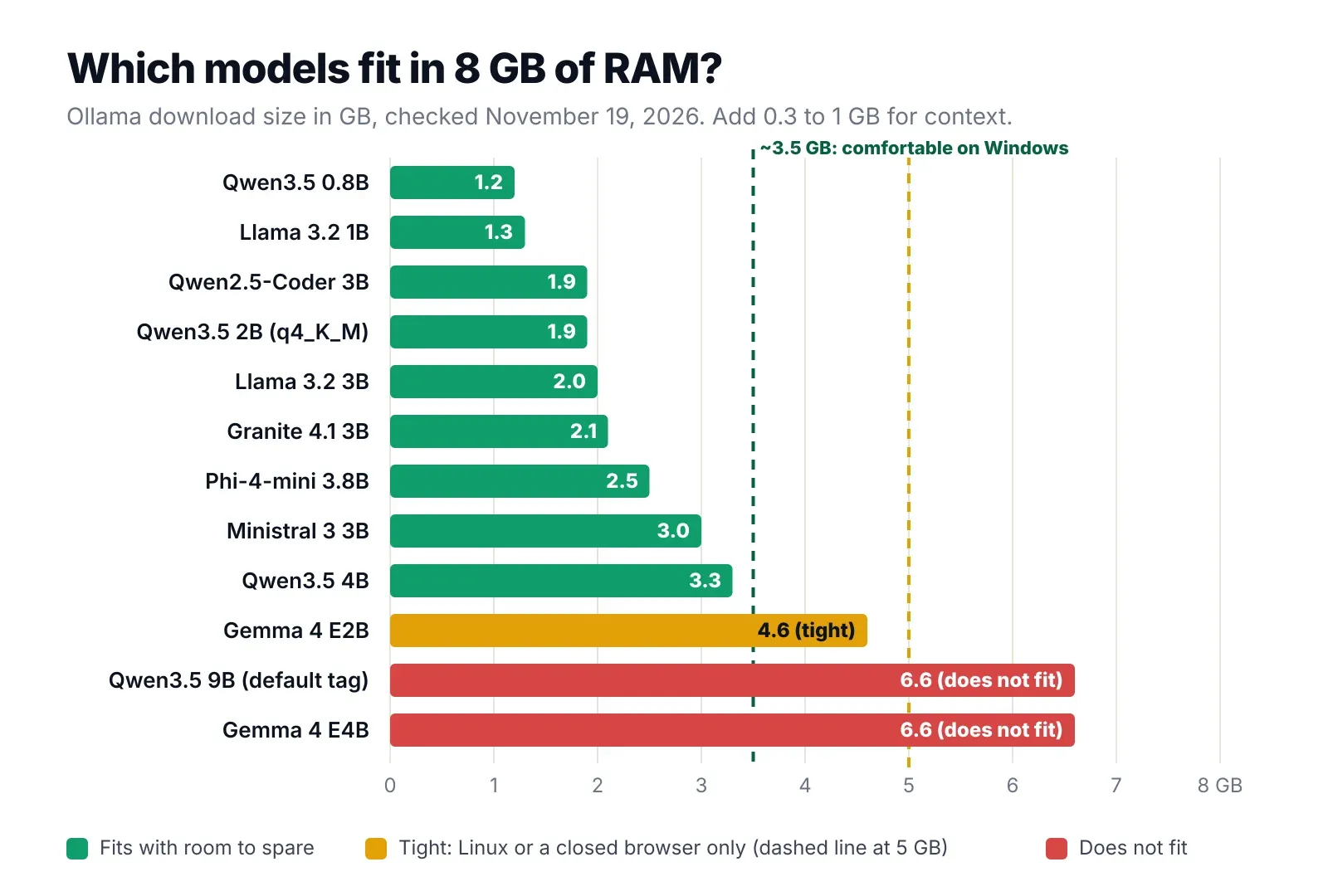
Each of these runs on a CPU with 8 GB of RAM. They are in order of how often we would recommend them, not by size.
| # | Model | Parameters | Ollama download | Context | License |
|---|---|---|---|---|---|
| 1 | Qwen3.5 4B | 4.7B | 3.3 GB | 256K | Apache 2.0 |
| 2 | Qwen3.5 2B | 2.3B | 1.9 GB (q4_K_M) | 256K | Apache 2.0 |
| 3 | Phi-4-mini | 3.8B | 2.5 GB | 128K | MIT |
| 4 | Granite 4.1 3B | 3.4B | 2.1 GB | 128K | Apache 2.0 |
| 5 | Ministral 3 3B | 3.8B | 3.0 GB | 256K | Apache 2.0 |
| 6 | Llama 3.2 3B | 3.2B | 2.0 GB | 128K | Llama 3.2 Community |
| 7 | Qwen2.5-Coder 3B | 3.1B | 1.9 GB | 32K | Qwen Research |
| 8 | Gemma 4 E2B | 5.1B total | 4.6 GB | 128K | Apache 2.0 |
| 9 | Qwen3.5 0.8B or Llama 3.2 1B | 0.8B to 1.2B | 1.2 to 1.3 GB | 128K+ | Apache 2.0 / Llama |
The “Context” column is the most the model supports. On 8 GB of RAM you will use far less, usually 4K to 8K tokens, because every token of context costs memory.
1. Qwen3.5 4B: best overall
Qwen3.5 4B from Alibaba’s Qwen team is the best LLM for 8GB RAM in late 2026. It came out in February 2026 as part of the Qwen3.5 small series, it is released under Apache 2.0, and it can read images as well as text.
Why it wins at this size:
- Strong answers for its size. It handles explanations, rewriting, summaries, simple code and general questions better than older 3B models.
- Cheap context. Only one layer in four uses full attention, so its context memory is small. By our calculation, 8K tokens of context costs about 256 MB, and 32K costs about 1 GB. Most 3B to 4B models need three to four times as much.
- Easy to run. One command in Ollama.
ollama run qwen3.5:4bThe 3.3 GB Ollama download includes the image-reading part. When you only chat in text, the part read for every word is closer to 2.7 GB, which is why it is faster than the download size suggests.
Watch out for: typing ollama run qwen3.5 without the :4b tag. That downloads the 9B model, which is 6.6 GB and will not fit next to Windows. If the model shows a long “thinking” section before each answer, add --think=false to the run command to make replies start sooner.
Best for: most people. Start here, and only switch if it is too slow or you need a specialist.
2. Qwen3.5 2B: fastest model that is still useful
Qwen3.5 2B is the pick for older laptops, single-channel RAM, or anyone who wants replies that start instantly. It is the same family as the 4B, with the same Apache 2.0 license, at about half the size.
ollama run qwen3.5:2b-q4_K_MUse the q4_K_M tag (1.9 GB). The plain qwen3.5:2b tag is a larger 2.7 GB build, which is fine on Linux but wastes RAM on Windows.
What you give up: it makes more factual mistakes than the 4B and loses track of long instructions sooner. For quick rewrites, short answers, grammar fixes and brainstorming, the difference is small. For anything you plan to trust, double-check the output.
Best for: laptops with 4 to 8 GB of RAM, a single RAM stick, or a CPU older than about 2018.
3. Phi-4-mini: best for math and logic
Phi-4-mini is Microsoft’s 3.8B model, released under the MIT license, which is about as permissive as licenses get. Microsoft trained it heavily on reasoning-focused data, and it shows: it is strong for its size at math word problems, logic and step-by-step explanations.
ollama run phi4-miniAt 2.5 GB, it is lighter than Qwen3.5 4B. The trade-off is context memory: by our calculation, Phi-4-mini needs about 1 GB for 8K tokens of context and about 4 GB for 32K. Keep it at 8K or less on 8 GB of RAM.
Weak spot: a small model has limited room for facts. Microsoft’s own model card notes that Phi-4-mini has limited factual knowledge, so it can be confidently wrong about names, dates and events. Use it to reason, not as an encyclopedia.
Best for: students, homework help, spreadsheet formulas, logic puzzles and explaining steps.
4. Granite 4.1 3B: best for summaries, documents and RAG
Granite 4.1 3B is IBM’s April 2026 small model, under Apache 2.0. IBM builds Granite for business tasks: summarizing, pulling facts out of documents, answering questions from your own files (RAG), and calling tools with clean, structured output.
ollama run granite4.1:3bAt 2.1 GB, it is one of the lightest models on this list, which leaves more room for context when you paste in a document. Its answers are plainer and less chatty than Qwen’s, which is exactly what you want for summaries and data extraction.
Best for: summarizing notes and articles, extracting fields from text, local document Q&A setups, and anyone who needs a clean Apache 2.0 license for work.
5. Ministral 3 3B: best for many languages
Ministral 3 3B is Mistral AI’s small model from December 2025, under Apache 2.0. Mistral is a French company, and its models tend to handle European languages well, which makes this a good pick if you write in French, German, Spanish, Italian or Portuguese as well as English.
ollama run ministral-3:3bAt 3.0 GB, it is one of the larger models on this list, close to Qwen3.5 4B. On Windows with a busy browser, it is near the limit, so keep context at 4K to 8K.
Best for: writing and translation outside English, and anyone who prefers Mistral’s writing style.
6. Llama 3.2 3B: the most widely supported
Llama 3.2 3B is Meta’s 2024 small model. It is no longer the strongest model at its size, but it has the most tutorials, integrations and community fine-tunes of any small LLM, so it is the one most likely to “just work” in third-party apps.
ollama run llama3.2:3bAt 2.0 GB, it fits easily. Its context memory is heavier than Qwen3.5’s, about 900 MB for 8K tokens by our calculation, so keep context modest.
License note: Llama 3.2 uses Meta’s Llama 3.2 Community License, not a standard open source license. It allows commercial use, but it has an acceptable use policy and extra terms for very large companies. For a personal laptop that rarely matters. For a product, read the license first.
Best for: following an older tutorial step by step, or apps that only list Llama models.
7. Qwen2.5-Coder 3B: best local LLM for coding on 8GB RAM
Qwen2.5-Coder 3B is a code-specialized model. Its real strength is fill-in-the-middle autocomplete: it looks at the code before and after your cursor and suggests the missing part, the way GitHub Copilot does.
ollama run qwen2.5-coder:3bAt 1.9 GB, it is light enough to run in the background while you work. Its 32K context is shorter than the general models, but for autocomplete you only feed it the nearby code anyway.
License note: the 3B version uses the Qwen Research license, which does not allow commercial use without permission. The 1.5B version (qwen2.5-coder:1.5b, under 1 GB) is Apache 2.0 and a fine choice for autocomplete on slower machines.
Best for: code completion in VS Code or JetBrains through an extension that supports Ollama. See the coding section below for the setup.
8. Gemma 4 E2B: fits, but only just
Gemma 4 E2B is Google’s small multimodal model from 2026, now under Apache 2.0. “E2B” means about 2 billion effective parameters: it has 5.1 billion in total, but uses only part of them for each token. It accepts images and audio as well as text.
ollama run gemma4:e2bThe catch is size. The Ollama download is 4.6 GB, because it includes the image and audio parts. On Windows with a browser open, that is beyond the free 3 GB, so it will swap. On a light Linux desktop with the browser closed, it fits.
Best for: Linux users who want image or audio input. On Windows, use Qwen3.5 4B for image input instead, since it is smaller.
9. Qwen3.5 0.8B and Llama 3.2 1B: for 4GB laptops and very old PCs
If your computer has only 4 GB of RAM, or 8 GB with very little free, these tiny models still run:
ollama run qwen3.5:0.8b
ollama run llama3.2:1b
Both are about 1.2 to 1.3 GB. Do not expect deep answers. They are good at short, simple tasks: rewriting a sentence, fixing grammar, turning notes into a list, sorting text into categories, or answering basic questions. On a dual-channel laptop they are very fast.
Best for: 4 GB machines, Raspberry Pi-class devices, and simple text cleanup jobs.
Models that will not fit in 8GB RAM (and the Ollama tag trap)
These models are often recommended in older “8GB” guides, but on an 8 GB computer with no GPU they do not fit, or they swap:
| Model | Ollama download | Why it fails on 8 GB RAM |
|---|---|---|
Qwen3.5 9B (qwen3.5 default tag) |
6.6 GB | Bigger than the free RAM on Windows |
Gemma 4 E4B (gemma4 default tag) |
6.6 GB | Same: too big with the OS loaded |
| Qwen3 8B | 5.2 GB | Fits only on Linux with nothing else open, very slow |
| Ministral 3 8B | 6.0 GB | Too big |
| gpt-oss 20B | 14 GB | Far too big |
The tag trap. In Ollama, a model name with no tag downloads the “latest” tag, and for many families that is a mid-size model, not the small one. ollama run qwen3.5 gets you the 9B. ollama run gemma4 gets you the E4B. Always type the size tag: qwen3.5:4b, gemma4:e2b, llama3.2:3b.
Many guides that call an 8B model “the best LLM for 8GB” are really talking about 8 GB of VRAM on a graphics card, plus separate system RAM. That is a different situation. With 8 GB of RAM and no GPU, those models are out of reach.
CPU-only LLM performance: how fast is it?
On a CPU, a 4B model writes roughly 5 to 13 tokens per second on a typical laptop, and up to about 20 on a newer DDR5 machine. A token is about three quarters of a word, so 5 tokens per second is already close to normal reading speed.
The reason is simple: to produce each token, the CPU has to read every weight of the model from RAM once. So the top speed is roughly memory bandwidth divided by model size. A faster CPU helps a little; faster RAM helps a lot.
The estimates below use that formula, then take 50 to 70 percent of the result, because real software never reaches the theoretical limit. They are estimates, not benchmarks:
| Model size read per token | One stick DDR4-3200 (25.6 GB/s) | Two sticks DDR4-3200 (51.2 GB/s) | Two sticks DDR5-5600 (89.6 GB/s) |
|---|---|---|---|
| ~1 GB (1B models) | 13 to 18 tok/s | 26 to 36 tok/s | 45 to 63 tok/s |
| ~2 GB (3B models) | 6 to 9 tok/s | 13 to 18 tok/s | 22 to 31 tok/s |
| ~2.7 GB (Qwen3.5 4B, Phi-4-mini) | 5 to 7 tok/s | 10 to 13 tok/s | 17 to 23 tok/s |
| ~5 GB (8B models, for comparison) | 2.5 to 3.5 tok/s | 5 to 7 tok/s | 9 to 12 tok/s |
Why one RAM stick makes your LLM half as fast
Look at the first two columns. A laptop with a single 8 GB stick runs in single channel mode and has half the memory bandwidth of the same laptop with two 4 GB sticks in dual channel. For local LLMs, that means half the speed.
Many budget laptops ship with a single 8 GB stick. To check yours:
- Windows: Task Manager, Performance, Memory. Look at “Slots used”. “1 of 2” means single channel.
- Linux: run
sudo dmidecode -t memory | grep -i sizeand count the installed modules.
If your laptop has a free slot, adding a matching stick is the cheapest speed upgrade you can make for local AI. It also takes you to 16 GB, which opens up 7B to 9B models; see our guide to the best local LLM for 16GB RAM.
Prompt reading is the slow part on a CPU
Two different speeds matter:
- Prompt processing. The model reads your whole prompt before it starts answering. This is limited by CPU compute, and on a laptop CPU it is slow. A short question is processed almost instantly. A pasted 2,000-word document can take tens of seconds.
- Generation. Writing the reply, one token at a time. This is the bandwidth-limited speed in the table above.
So for summarizing long texts, a smaller model (Granite 4.1 3B, Qwen3.5 2B) often feels much faster overall, even if its answers are slightly weaker.
To see your own numbers, run a model with --verbose:
ollama run qwen3.5:4b --verboseAfter each reply, Ollama prints the “prompt eval rate” and the “eval rate”. The eval rate is your generation speed in tokens per second.
Best Ollama model for 8GB RAM: setup in 5 minutes
The best Ollama model for 8GB RAM is qwen3.5:4b, and Ollama is the easiest way to run it. Here is the full setup for Windows, macOS and Linux.
How to run an LLM locally on Windows without a GPU
- Download the Windows installer from ollama.com and run it. No account is needed.
- Open PowerShell or Command Prompt.
- Run your first model:
ollama run qwen3.5:4b- The first run downloads the model (3.3 GB). After that it starts in a few seconds, and you can type questions directly.
- Type
/byeto exit.
Ollama on Windows also has a simple chat window, so you do not have to stay in the terminal if you prefer a normal app.
How to run an LLM locally on Linux without a GPU
curl -fsSL https://ollama.com/install.sh | sh
ollama run qwen3.5:4b
The install script sets Ollama up as a background service. On Linux, a light desktop such as Xfce or LXQt leaves noticeably more RAM for the model than GNOME or KDE.
On a Mac with 8 GB
Download Ollama for macOS from ollama.com and run the same command. On Apple Silicon Macs (M1 to M4), the built-in GPU shares the 8 GB of memory and is used automatically, so speeds are better than on most Windows laptops. Stick to the same 4B-and-under models.
Useful Ollama commands
| Command | What it does |
|---|---|
ollama list |
Shows downloaded models and their sizes |
ollama ps |
Shows loaded models, memory used and “100% CPU” when no GPU is used |
ollama rm qwen3.5:9b |
Deletes a model you downloaded by mistake |
ollama stop qwen3.5:4b |
Unloads a model from RAM right away |
/set parameter num_ctx 8192 |
Inside a chat: sets the context length to 8K |
Ollama keeps a model in memory for a few minutes after you finish so the next question starts fast. On 8 GB, run ollama stop when you are done if you need the RAM back.
LM Studio RAM requirements and settings for 8GB
LM Studio’s own documentation recommends 16 GB of RAM, and on Windows and Linux it needs a CPU with AVX2 support (almost every Intel and AMD CPU from 2015 onward has it). It does run on 8 GB if you stick to small models and modest context, and LM Studio’s docs say the same for 8 GB Macs.
LM Studio is the better choice if you want a normal desktop app with a chat window, a model search, and visible settings, instead of a terminal.
Settings that matter on an 8 GB, CPU-only machine:
- Pick a Q4_K_M download. In the model search, LM Studio lists several files for each model. Choose Q4_K_M for 3B to 4B models.
- Watch the fit indicator. LM Studio estimates whether a download fits your machine before you get it. If it says a model is likely too large, believe it.
- Context length: 4096 to 8192. Do not load a model at its maximum context. The default is usually sensible; do not raise it to 128K.
- GPU offload: 0. With no dedicated GPU, keep everything on the CPU.
- CPU threads: your number of physical cores. More threads than physical cores usually does not help.
Best local LLM for coding with 8GB RAM
The best local LLM for coding with 8GB RAM is Qwen2.5-Coder 3B for autocomplete, plus Qwen3.5 4B for chat about code. Be realistic about what that buys you: on 8 GB and no GPU, a local model is a helpful assistant for snippets, single files and explaining errors, not a replacement for large cloud coding tools.
A practical setup in VS Code:
- Install Ollama and pull both models:
ollama pull qwen2.5-coder:3b
ollama pull qwen3.5:4b- Install a VS Code extension that supports Ollama, such as Continue.
- Set Qwen2.5-Coder 3B as the autocomplete model and Qwen3.5 4B as the chat model.
- Keep only one loaded at a time if memory is tight. Both together are about 5 GB, which is too much on Windows.
Where small local coding models do well:
- Completing the line or block you are typing
- Writing a small function from a clear comment
- Explaining an error message or a confusing piece of code
- Writing regular expressions, SQL queries and shell one-liners
- Converting code between similar languages
Where they struggle: big refactors across many files, unfamiliar frameworks, and anything that needs the model to keep a large codebase in mind. For those, a 16 GB machine running a 7B to 14B coder, or a cloud model, is the honest answer.
If your machine is slow, swap Qwen2.5-Coder 3B for the 1.5B version. Autocomplete only feels helpful when it is fast, and the 1.5B model is roughly twice as quick.
Best LLM for a low end PC (4GB to 8GB RAM)
The best LLM for a low end PC depends on free RAM, not total RAM. Use this table:
| Free RAM while your apps are open | Best pick | Command |
|---|---|---|
| Under 2 GB | Qwen3.5 0.8B | ollama run qwen3.5:0.8b |
| 2 to 3 GB | Qwen3.5 2B or Llama 3.2 3B | ollama run qwen3.5:2b-q4_K_M |
| 3 to 4 GB | Qwen3.5 4B or Phi-4-mini | ollama run qwen3.5:4b |
| 4 to 5 GB | Any model on this list, with 8K context | |
| Over 6 GB | Consider an 8B model at Q4 (slow on CPU) | ollama run qwen3:8b |
Low end PCs usually have three bottlenecks at once: single-channel RAM, an older CPU and a slow hard drive. The first two set your speed, and the third sets how long a model takes to load. If your system still has a spinning hard drive, the first load of a 2 GB model can take a minute; after that the model stays in RAM and the drive no longer matters.
Very old CPUs without AVX2 (some pre-2015 Intel Pentium and Celeron chips) can still run Ollama and llama.cpp, but much more slowly, and LM Studio will not install. On those machines, stay with 1B models.
Quantization explained: what Q4_K_M means for your RAM
Quantization is what makes these models fit. The original weights are stored as 16-bit numbers. Quantization rounds them to fewer bits, which shrinks the file with only a small loss in quality.
| Format | Bits per weight (about) | Size per billion parameters | A 4B model | Quality |
|---|---|---|---|---|
| F16 | 16 | about 2 GB | about 8 GB | Original |
| Q8_0 | 8.5 | about 1.1 GB | about 4.3 GB | Nearly identical |
| Q6_K | 6.6 | about 0.8 GB | about 3.3 GB | Very close |
| Q4_K_M | 4.8 | about 0.6 GB | about 2.5 GB | Small loss: the usual choice |
| Q3_K_M | 3.9 | about 0.5 GB | about 2 GB | Noticeable loss |
| Q2_K | 3.4 | about 0.4 GB | about 1.7 GB | Large loss |
Rule of thumb: at Q4_K_M, a model needs about 0.6 GB per billion parameters, plus room for context. That is why 4B is the ceiling on 8 GB: 4B times 0.6 is about 2.5 GB, plus context, plus the operating system.
Two common questions:
- Should I run a 4B model at Q8 for better quality? On 8 GB, usually not. It doubles the size and halves the speed for a small quality gain.
- Is a 7B model at Q2 or Q3 better than a 4B at Q4? Rarely. Heavy quantization damages small models badly. A newer 4B at Q4_K_M usually beats an older 7B squeezed to Q2.
Ollama picks a sensible quantization (usually Q4_K_M) for most default tags. In LM Studio and llama.cpp, you choose it yourself when you download the GGUF file. For every GGUF format compared, see what Q4_K_M means and which quantization to pick.
Context length: the hidden RAM cost
Context is how much text the model can keep in mind at once: your messages, its replies and any document you paste. Every token of context is stored in memory, in what is called the KV cache. On 8 GB of RAM, this is the cost people forget.
Here is what 8K and 32K tokens of context cost for some of the models above. These are our calculations from each model’s published configuration, at the default 16-bit cache:
| Model | Per token | 8K context | 32K context |
|---|---|---|---|
| Qwen3.5 4B | 32 KB | about 256 MB | about 1 GB |
| Granite 4.1 3B | 80 KB | about 640 MB | about 2.5 GB |
| Ministral 3 3B | 104 KB | about 830 MB | about 3.3 GB |
| Llama 3.2 3B | 112 KB | about 900 MB | about 3.5 GB |
| Phi-4-mini | 128 KB | about 1 GB | about 4 GB |
Two things stand out. First, 32K context on Phi-4-mini or Llama 3.2 3B costs more memory than the model itself. Second, Qwen3.5’s design keeps its cache far smaller, which is a big reason it is our top pick for 8 GB.
Practical rule: keep context at 4K to 8K on 8 GB of RAM. 8K tokens is about 6,000 words, enough for a long chat or a medium document. To set it in Ollama, type /set parameter num_ctx 8192 in a chat, or start the server with the OLLAMA_CONTEXT_LENGTH=8192 environment variable.
10 ways to make a CPU-only LLM faster
- Use two RAM sticks. Dual channel can almost double generation speed. Nothing else on this list comes close.
- Pick the smallest model that does the job. Speed scales with model size. Qwen3.5 2B is roughly twice as fast as the 4B.
- Use Q4_K_M, not Q8. Half the size means nearly twice the speed.
- Keep context short. Start a new chat when the topic changes; long chats slow down prompt processing.
- Close the browser. On 8 GB, a browser with many tabs fights the model for the same memory.
- Plug in your laptop. On battery, many laptops limit CPU power and memory speed. Use the “Best performance” power mode on Windows.
- Turn off “thinking” for simple tasks. Models that think before answering write hundreds of hidden tokens first. In Ollama, run thinking models with
--think=false. - Run one model at a time. Two loaded models on 8 GB means swapping. Use
ollama psandollama stopto check and unload. - Match threads to physical cores. In llama.cpp use
-twith your physical core count; in LM Studio set the CPU thread pool to the same. - Use a light desktop on Linux. Xfce or LXQt can free 1 GB or more compared with heavier desktops, which is about a third of a 4B model.
Which model should you pick?
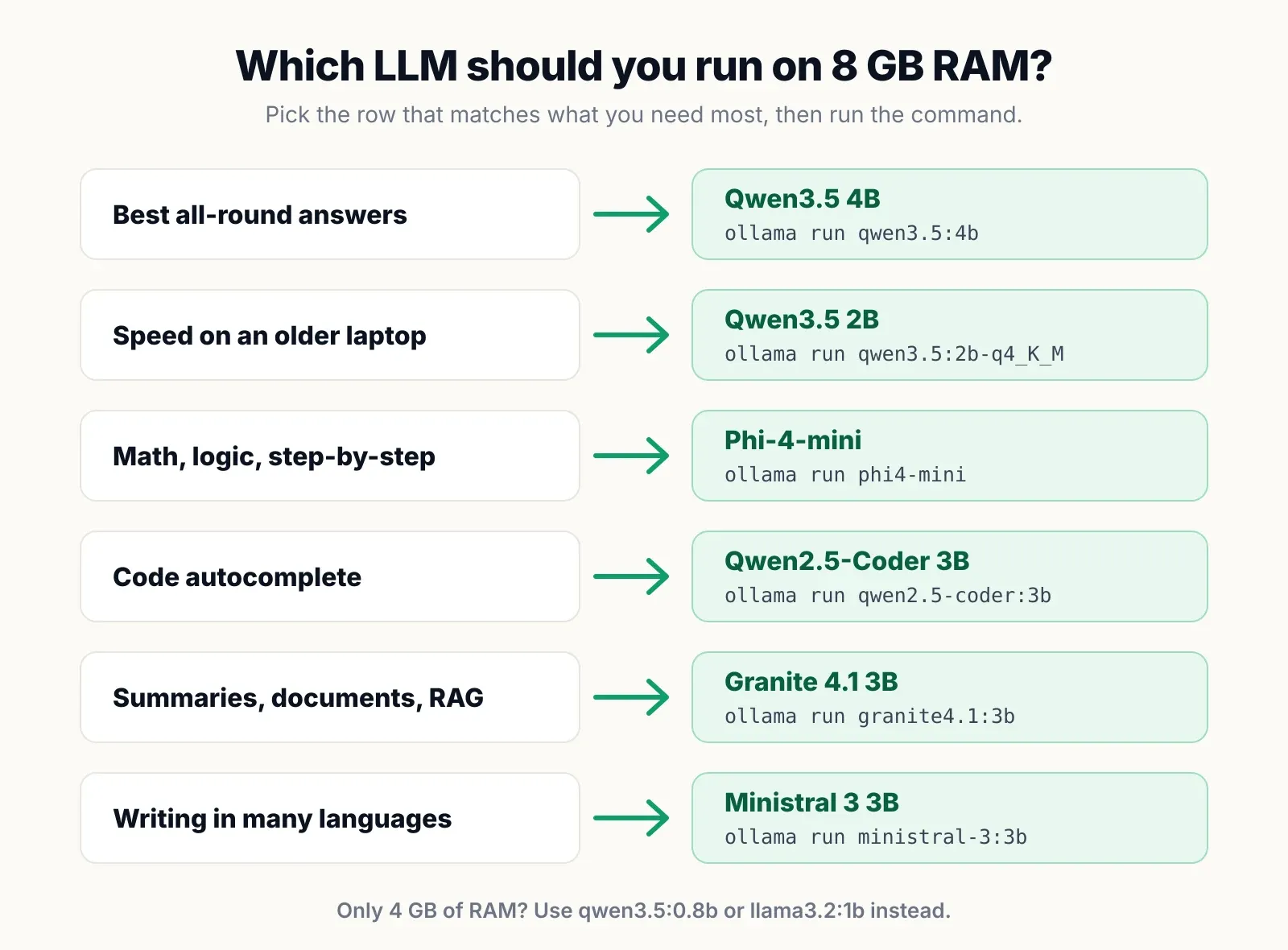
If you are still unsure, install Ollama and try two models with the same three questions from your real work:
ollama run qwen3.5:4b
ollama run phi4-mini
Ten minutes of side-by-side testing on your own tasks tells you more than any benchmark. Delete the one you do not like with ollama rm.
Open source vs open weight: what the licenses allow
Most “open source LLMs” are, strictly speaking, open weight: you can download and run the trained model, but the full training data and code are usually not published. What matters in practice is the license, because it decides what you may do with the model’s output and whether you can build a product on it.
| License | Models in this guide | Commercial use |
|---|---|---|
| Apache 2.0 | Qwen3.5, Granite 4.1, Ministral 3, Gemma 4, Qwen2.5-Coder 1.5B | Yes, very permissive |
| MIT | Phi-4-mini | Yes, very permissive |
| Llama 3.2 Community License | Llama 3.2 1B and 3B | Yes, with an acceptable use policy and extra terms for very large companies |
| Qwen Research License | Qwen2.5-Coder 3B | No, research and personal use unless you get permission |
For personal use on your own laptop, all of them are fine. If you plan to use a model inside a product or service, stick to Apache 2.0 or MIT, and read the model card on Hugging Face before you ship.
How we picked these models
PickZeal did not run lab benchmarks for this guide, and we say so up front. Instead, every model here was checked against public, verifiable sources on November 19, 2026:
- Sizes come from the Ollama library tag pages for each model.
- Parameter counts, licenses and release dates come from each model’s Hugging Face page.
- Context memory figures are our own calculations from each model’s published configuration (layers, key-value heads and head size), at a 16-bit cache.
- Speeds are estimates: memory bandwidth divided by the model size read per token, reduced to 50 to 70 percent of that ceiling to reflect real software. Your results will vary with CPU, RAM speed, background apps and power settings.
- Picks favor models that leave headroom on a Windows 11 laptop with a browser open, because that is the most common 8 GB setup.
We will update this guide when new small models come out or download sizes change. The “Updated” date at the top shows when it was last checked.
Frequently asked questions
Can you run an LLM on CPU only?
Yes. Tools like Ollama, LM Studio and llama.cpp run language models on a normal CPU with no graphics card. Small models of 1B to 4B parameters run at a usable 5 to 20 tokens per second on most laptops from the last five years. Larger models still run, but slowly.
Is 8 GB RAM enough for AI?
8 GB of RAM is enough to run small local AI models of up to about 4 billion parameters, such as Qwen3.5 4B, Phi-4-mini or Llama 3.2 3B, for chat, writing help, summaries and simple coding. It is not enough for 7B to 9B models alongside Windows and a browser. For those, plan on 16 GB.
How much RAM is needed for Ollama models?
A rough rule is the download size plus 0.5 to 1 GB for context and overhead. A 2 GB model like Llama 3.2 3B needs about 3 GB of free RAM, a 3.3 GB model like Qwen3.5 4B needs about 4 GB, and a 5 to 7 GB model like an 8B or 9B needs 6 to 8 GB free, which an 8 GB computer does not have.
Can Ollama be used without a GPU?
Yes. Ollama falls back to the CPU automatically when it finds no supported graphics card. Run 'ollama ps' while a model is loaded and the PROCESSOR column shows '100% CPU'. Nothing extra needs to be installed or configured.
What LLM can run on a CPU?
Any LLM in GGUF format can run on a CPU, but only small ones run at a comfortable speed. On a typical laptop, models with 4 billion parameters or fewer, such as Qwen3.5 4B, Qwen3.5 2B, Phi-4-mini, Granite 4.1 3B and Llama 3.2 3B, give replies at about reading speed.
Do I need a GPU for an LLM?
No. A GPU makes local LLMs faster, but it is not required. CPU-only speed depends mostly on memory bandwidth, so a laptop with two RAM sticks in dual channel runs a 4B model at roughly 10 to 13 tokens per second, which is faster than most people read.
What is the best local LLM for coding with 8GB RAM?
Use Qwen2.5-Coder 3B (1.9 GB) for code autocomplete in an editor, and Qwen3.5 4B for chatting about code, explaining errors and writing small functions. On 8 GB of RAM and no GPU, expect help with snippets and single files, not whole-project refactors.
Is a 4B model at Q8 better than an 8B model at Q4 on 8GB RAM?
On 8 GB of RAM, neither is the best choice. A 4B model at Q8 and an 8B model at Q4 both need about 5 GB before context, which leaves too little room on Windows. A 4B model at Q4_K_M, around 2.5 to 3.3 GB, gives most of the quality with far more headroom and speed.
Sources
- Ollama library: qwen3.5 tags and sizes
- Ollama library: granite4.1 tags and sizes
- Ollama library: phi4-mini
- Hugging Face: Qwen/Qwen3.5-4B model card
- Hugging Face: microsoft/Phi-4-mini-instruct model card
- Hugging Face: ibm-granite/granite-4.1-3b model card
- Hugging Face: mistralai/Ministral-3-3B-Instruct-2512 model card
- Hugging Face: google/gemma-4-E2B-it model card
- LM Studio: system requirements
- llama.cpp on GitHub
Topic
More on Local LLMs
- GuideBest Local LLM for 16GB RAM: 10 Models That Fit (2026)The best local LLMs for 16GB RAM and no GPU: 10 models that fit, real Ollama sizes, speed estimates, and the popular picks that only fit a 16GB GPU.
- GuideBest Local LLM for 32GB RAM: 10 Models That Fit (2026)The best local LLMs for 32GB RAM and no GPU: 10 models that fit, real Ollama sizes, and why mixture-of-experts models run 5 to 10 times faster on a CPU.
- GuideWhat Is Q4_K_M? GGUF Quantization Explained (2026)What Q4_K_M means in a GGUF file, how it compares with Q4_K_S, Q5_K_M, Q6_K, Q8_0, IQ4_XS and UD-Q4_K_XL, and which quantization to download for your RAM.